DEFAULT WALLPAPER SETTINGS WINDOWS A computer used by multiple users will have a different desktop for each user. Anyone can change their desktop to whatever wallpaper they want to. However, some companies and even some users at home would like to keep the wallpaper of the desktop the same for all users. The wallpaper can be a custom company logo or anything that the administrator wishes it to be. In this article, we will show you methods through which you can easily set a default background wallpaper for all users on the system. It will also prevent them from changing the desktop wallpaper without admin rights. Custom Desktop Wallpaper for All Users Method 1: Using the Local Group Policy Editor The Group Policy is a Windows feature that controls the working environment of the operating system. It contains many settings that are not available in the Control Panel or Settings app . There is a specific policy that can set a desktop wallpaper for...
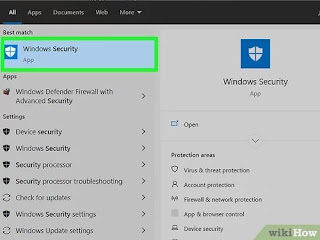
Windows virus remove solution: Remove Virus In Windows How to virus remove in windows setting To remove a virus from a Windows computer, you can use the built-in Windows Defender or another antivirus program. Here are the general steps you can follow: Run a full scan of your computer using Windows Defender or your chosen antivirus program. If any viruses are found, the antivirus program should give you the option to quarantine or remove them. Choose to remove the viruses, if possible. Perform another full scan to ensure that the viruses have been removed completely. If you still face problems you can try running a scan using malwarebytes and adwcleaner which are free and useful in most cases. You should also update your operating system and all installed software to the latest versions, to prevent any vulnerabilities from being exploited by malware. It's also a good practice to keep your computer updated, and to be cautious when clic...
MS OFFICE Default FILE SAVE SETTING Changing the Microsoft Office Default Save Location To change the default location for saved Microsoft 365 files, go into any of the Microsoft 365 apps installed on your PC, then do the following: Bring up the document you wish to save. Choose File. Click Options at the bottom left. Select Save. Check the box next to Save to Computer by Default under the Save Documents section. Add the Default local file location in the box provided. You can choose the Browse button. Click OK. Your default save location has been changed for all of your Microsoft 365 files. From now on, when you want to save a file, it will default to your local drive. Changing the Microsoft Office Default Save Location To change the default location for saved Microsoft 365 files, go into any of the Microsoft 365 apps installed on your PC, then do the following: Change Manual Location You can still manually change the saved location for individual files. You can do so the first ...


Comments
Post a Comment